
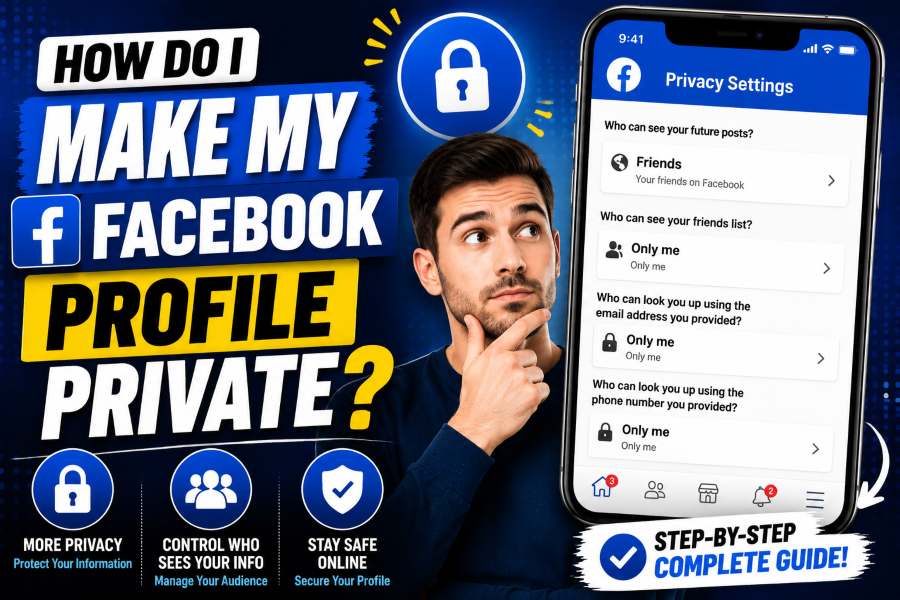
How Do I Make My Facebook Profile Private? Facebook does not provide one universal private-account switch in every country. If Profile Lock is available, it creates a limited public view. Otherwise, use Privacy Checkup and the Audience and visibility settings to limit future posts, old posts, profile details, friends, stories, tags, followers, and search-engine links.
In This Guide
- The Direct Answer
- Use Profile Lock If It Is Available
- Run Facebook Privacy Checkup
- Set the Audience for Future Posts
- Limit the Audience for Past Posts
- Hide Your Friends List
- Control Profile Information
- Manage Profile and Tagging Review
- Set Story and Reel Privacy
- Control Followers and Public Content
- Control How People Find and Contact You
- Review Apps, Websites, and Connected Accounts
- Use View As and Activity Log
- What Facebook Privacy Cannot Hide
- Final Privacy Checklist
- Privacy in Groups, Marketplace, and Public Pages
- Final Answer
The Direct Answer
To make a Facebook profile more private, open Settings and privacy, choose Settings, and work through the Audience and visibility options. Set future posts to Friends or a smaller audience, limit past public posts, hide your friends list, control stories and followers, review profile details, enable tag review, and turn off external search-engine linking if that option is available.
Some regions also offer Profile Lock. When a profile is locked, people who are not friends see a limited version of profile content. Facebook notes that if Profile Lock is not available, you can still use Privacy Checkup and individual privacy settings.
No Facebook profile is completely invisible while active. Your public profile can include your name, username, user ID, current profile picture, and cover photo. The practical goal is to reduce everything else to the smallest audience that works for you.
Use Profile Lock If It Is Available
Go to your profile, open the three-dot menu, and look for Lock profile. Follow the confirmation steps. The exact menu can vary by device and region. A locked profile shows limited content to non-friends and applies several privacy protections together.
Profile Lock is not available everywhere. If you do not see it, your app is not necessarily broken. Use Privacy Checkup and the detailed settings described below. These controls can create a similar result, but you must review them one by one.
After locking, use View As to check what a person who is not your friend can see. Privacy settings change over time, so repeat this review after major Facebook updates.
Run Facebook Privacy Checkup
Privacy Checkup guides you through important sharing and security choices. Open your profile picture or menu, choose Settings and privacy, and open Privacy Checkup. Review who can see what you share, how people can find you, your data settings, and account security.
Do not rush through the screens. Read the audience shown for each category. Old settings may have been copied from previous posts or apps. Set personal information such as email address, phone number, birthday, hometown, relationship status, and workplace to Friends, Only me, or a custom audience as appropriate.
Privacy Checkup is a starting point, not the entire process. Continue into Audience and visibility for detailed controls.
Set the Audience for Future Posts
Under Settings, open Posts or the relevant Audience and visibility section. Change Who can see your future posts? to Friends, Friends except, Specific friends, Only me, or a custom audience. Friends is a common private choice, but it still shares with everyone on your friends list.
Facebook remembers the audience you use, so check the audience selector before every post. A globe means Public. Two-person icons usually indicate Friends. A lock can represent Only me. Do not assume your default automatically applies to stories, reels, groups, Marketplace, or other features.
Use custom audiences for sensitive updates. Friends except can exclude selected people without unfriending them, while Specific friends limits a post to a chosen group.
Limit the Audience for Past Posts
Changing the future-post default does not automatically fix old public posts. Use Limit Past Posts in privacy settings to change many posts previously shared more broadly to Friends. Facebook warns that this bulk action is not always easy to reverse with one click.
After limiting, open Activity Log and review older posts individually. Some posts may have custom audiences, appear in public groups, be shared by other people, or involve tagged content. Group and Page posts follow the visibility of those spaces.
Delete or change the audience of old posts that reveal addresses, travel plans, children’s information, documents, tickets, or other sensitive details.
Hide Your Friends List
Open the setting for Who can see your friends list? and choose Only me for the strongest privacy. You may also choose Friends or a custom audience. Hiding your list reduces casual browsing of your social connections.
This setting has limits. Your friendship with another person can still appear on that person’s profile if their friends list is visible. Mutual friends can also be shown in recommendations, search, feeds, and other Facebook surfaces.
Review who you accept as a friend. A hidden list does not help if you approve unknown accounts that can see friend-only posts and profile information.
Control Profile Information
Visit your profile and open About or Edit details. Review work, education, current city, hometown, relationship, family, websites, contact information, and life events. Each item can have its own audience. Use Only me for information that does not need to be public.
Your current profile picture and cover photo are public according to Facebook Help. Choose images that do not reveal a home address, school badge, license plate, travel document, child’s location, or workplace access card. Older profile and cover photos may have separate audience controls, so review those albums.
Your name, username, user ID, profile picture, and cover photo are part of the public profile. Use accurate but minimal information.
Manage Profile and Tagging Review
Open Profile and tagging settings. Choose who can post on your profile, who can see posts others add, and who can see posts you are tagged in. Turn on Review posts you’re tagged in before the post appears on your profile. Turn on tag review if you want to approve tags people add to your posts.
Profile review controls whether tagged content appears on your profile, but it does not remove the content from the original audience. A public post can remain public even if you hide it from your profile. Ask the poster to remove it or untag yourself when necessary.
Review Activity Log regularly for tags, mentions, comments, and interactions that reveal personal information.
Set Story and Reel Privacy
Stories have their own audience settings. Set them to Friends, use Hide story from for selected people, or use a custom audience. Review story sharing options so other people cannot easily reshare content beyond the intended audience.
Reels and short-form content may have a different default. Check the audience before publishing. A reel shared publicly can reach people outside your friends list even when normal posts are limited.
Live video also requires careful review. Avoid broadcasting location, street views, work documents, or children’s routines in real time.
Control Followers and Public Content
Facebook may allow people who are not friends to follow public updates. Open Followers and public content. Set Who can follow me to Friends if you do not want strangers following the profile. Review who can comment on public posts, public profile information, and public story content.
If you use professional mode, your profile is designed for broader public reach. Decide whether creator tools are compatible with your privacy goal. A separate Page or professional profile may be better for public work while a personal profile remains limited.
Remember that comments you make on public Pages, groups, and posts can be visible publicly even when your own profile posts are private.
Control How People Find and Contact You
Review who can send friend requests. Friends of friends reduces requests from complete strangers, although it does not stop every discovery method. Limit who can look you up using your email address and phone number where those settings are available.
Turn off the option that allows search engines outside Facebook to link directly to your profile if you do not want a public search preview. Facebook notes that search engines may take time to update old results, and public information may still appear in other places.
Review Messenger delivery settings and message requests. Blocking is appropriate for accounts that should not find or contact you.
Review Apps, Websites, and Connected Accounts
Old games, quizzes, websites, and business tools may still have Facebook access. Open Apps and websites and remove services you no longer use. Review what active apps can access. Use unique passwords and avoid quizzes that request unnecessary profile data.
Check Accounts Center for connected Instagram accounts, cross-posting, login settings, and shared profile information. Cross-posting can make a private Facebook update public on another platform if audiences are not aligned.
Turn on two-factor authentication, login alerts, and recovery options. Privacy settings control audiences, while security settings protect the account from takeover.
Use View As and Activity Log
View As lets you preview the public version of your profile. Open your profile menu and select View As when available. Check the intro, photos, posts, friends, featured content, and public comments. Use a logged-out browser or a trusted non-friend account for an additional test.
Activity Log helps you review posts, comments, likes, searches, tags, group activity, and other history. Filter by date and category. Remove or change content that no longer fits your privacy needs.
A privacy review is not one-time work. New Facebook features may introduce new audience settings. Schedule a review every few months.
What Facebook Privacy Cannot Hide
An active account needs some public identity information. Facebook states that the public profile includes your name, username, user ID, profile picture, and cover photo. Mutual friendships can appear through other people. Public group posts and public comments remain visible according to the original audience.
Screenshots, downloads, shares, and copied information cannot be fully controlled after another person has access. Do not post highly sensitive data even to a small audience. Friends can have compromised accounts or share content outside Facebook.
Privacy settings reduce exposure; they do not create absolute secrecy. For information that must remain confidential, do not post it.
Final Privacy Checklist
Use Profile Lock if available. Set future posts to Friends or smaller. Limit past posts. Hide the friends list. Review every About field. Turn on profile review and tag review. Set stories and reels to the intended audience. Limit followers, comments, friend requests, email lookup, phone lookup, and search-engine linking.
Remove old apps, protect the account with two-factor authentication, and review connected Instagram settings. Use Activity Log to clean old content. Finish with View As so you can see what a stranger sees.
If you manage a public business presence, separate it from your personal profile. A Page or professional profile can remain public while your personal account uses stricter settings.
Privacy in Groups, Marketplace, and Public Pages
Your profile settings do not override the audience of every place you use Facebook. Posts and comments in a public group can be visible to people outside your friends list and may appear in search results. Before posting, check whether the group is public or private. Private groups limit who can see group content, but members can still copy or screenshot it.
Marketplace listings are designed for discovery. Your seller profile, listing photos, approximate location, and public activity can reveal more than normal friend-only posts. Remove house numbers, documents, family photos, and reflections that show personal information. Use in-app communication and follow local safety guidance for transactions.
Comments on public Pages, news posts, creator profiles, and public reels may also be visible broadly. Changing your future-post audience to Friends does not make those comments private. Review public interactions through Activity Log if you want to reduce your visible footprint.
If you manage a Page, remember that Page content is public by design. Keep Page administration separate from personal sharing, review who has Page access, and use business contact details rather than personal phone numbers when possible. The same principle applies to professional mode: public reach and personal privacy are different goals and may require separate spaces.
Final Answer
To make a Facebook profile private, use Profile Lock where available or manually reduce visibility through Privacy Checkup and Audience and visibility. Limit future and past posts, friends, profile details, stories, reels, tags, followers, search discovery, and connected apps.
You cannot hide every part of an active Facebook identity, and current profile and cover photos remain public. The strongest practical setup combines limited audiences, careful friend approval, regular Activity Log reviews, security protection, and minimal personal information.
Frequently Asked Questions
Is there a single private-account switch on Facebook?
Not everywhere. Profile Lock is available in some regions. Otherwise, use Privacy Checkup and individual Audience and visibility settings.
Can I hide my current profile picture?
Facebook states that the current profile picture and cover photo are public. Choose images that do not reveal sensitive information.
How do I hide my friends list?
Open privacy settings for the friends list and select Only me. Mutual friendships may still appear through other profiles.
Does Limit Past Posts make everything private?
It changes many older broad-audience posts to Friends, but public groups, tags, custom audiences, and other content still require review.
Can strangers follow my Facebook profile?
Check Followers and public content. Setting Who can follow me to Friends limits non-friend followers.
How can I see what strangers see?
Use View As from your profile and review the public version. You can also test through a logged-out browser.
Official Sources and Further Reading
Platform features and menu labels can change. The following official resources were used to verify the core guidance in this article:
- Facebook Help Center – View and adjust privacy settings
- Facebook Help Center – Lock your profile
- Facebook Help Center – Limit past posts
- Facebook Help Center – Public information
- Facebook Help Center – Profile picture and cover photo
Editorial note: This article provides general platform guidance and does not promise access to private, deleted, restricted, or protected content. Always follow platform rules and applicable law.